04
Wherever the lesson ends
A layby, a test centre car park, a pupil's driveway. If you have your iPhone, you can take the payment.
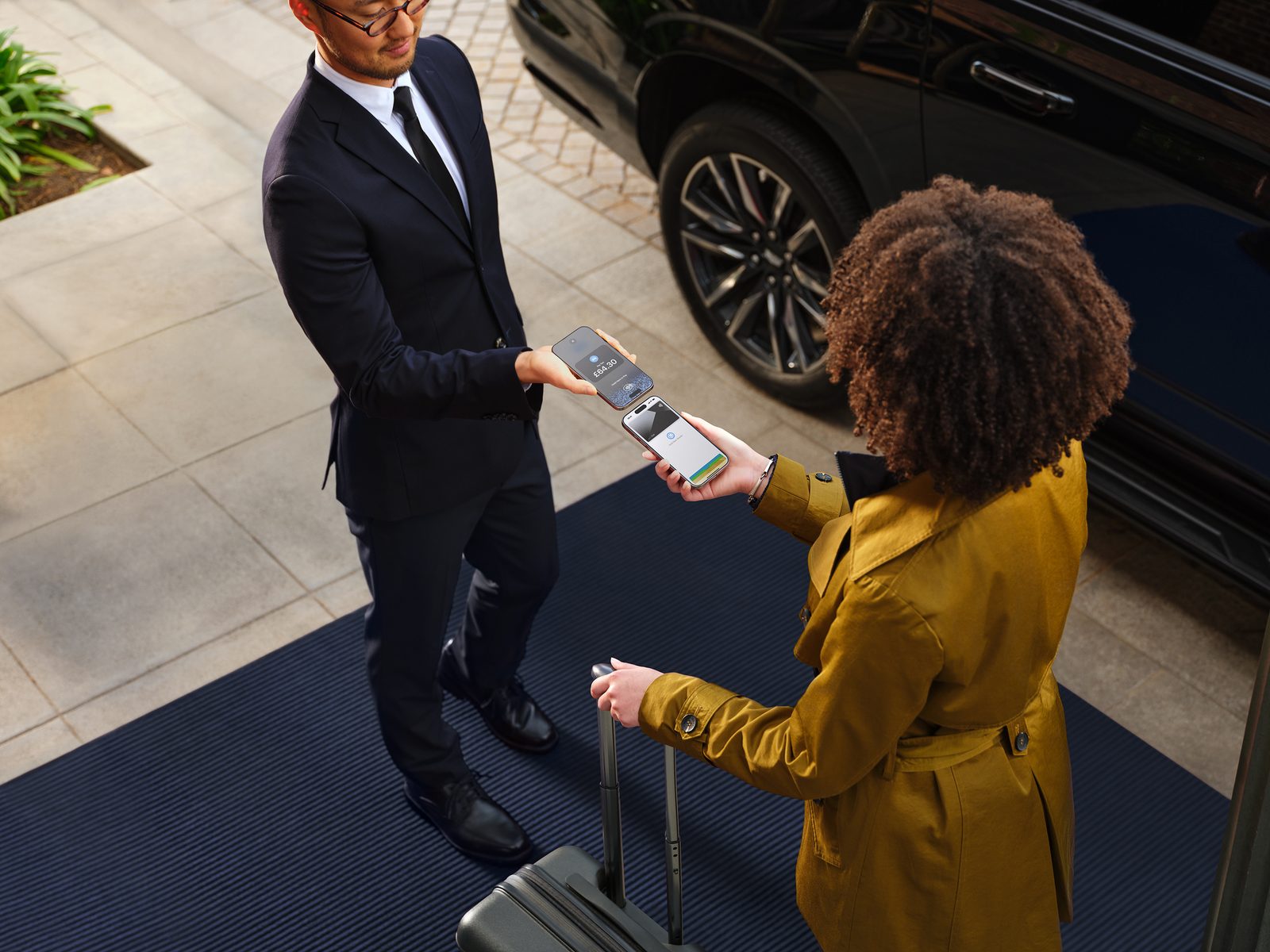
Accept contactless payments on your iPhone.
With Tap to Pay on iPhone and Driving School Diary, you can accept all types of in-person, contactless payments on your iPhone, from physical debit and credit cards to Apple Pay and other digital wallets. No extra terminals or readers needed. It is easy, secure and private.
Tap to Pay on iPhone is a contactless payment acceptance capability developed by Apple. Driving School Diary uses it so you can take a lesson payment on your own iPhone, at the kerbside, the moment the lesson ends.
There is nothing extra to buy, carry, charge or lose down the side of the seat. No additional hardware to invest in or manage.
Physical debit and credit cards, Apple Pay and other digital wallets, all accepted on your iPhone.
Take the money while the pupil is still in the car, instead of chasing a bank transfer that never quite arrives.
Payments settle to your own SumUp merchant account and on to your bank. Driving School Diary never holds your money and never takes a cut.
Accepting a payment is easy.
Open Driving School Diary on your iPhone, open the lesson or the invoice, and tap Take payment. Choose the amount: this lesson, everything the pupil owes, or a figure you type in. Then choose Tap to Pay on iPhone.
Hold it out to them, screen up. The amount they are about to pay is right there.
Your pupil holds their card horizontally, or their own device, over the contactless symbol at the top of your iPhone for a few seconds. If a PIN is needed, a PIN entry screen appears automatically.
When you see the Done tick, the card read is complete and the payment is being processed. The app records it and produces a numbered PDF receipt you can send by email, WhatsApp or Messages.
03 · Privacy and security
Privacy and security of iPhone, built in.
A layby, a test centre car park, a pupil's driveway. If you have your iPhone, you can take the payment.
A supported iPhone, a SumUp account and a one-time set-up. After that it is simply there on every lesson.
Driving School Diary runs on iPhone 11 or later, or iPhone SE (2nd generation) or later, on iOS 26. Every iPhone that can run the app supports Tap to Pay on iPhone. Keep iOS up to date in Settings, General, Software Update.
Card payments are processed by SumUp. Open Driving School Diary, go to Settings, Card payments, and tap Connect SumUp. You can create an account there and then; SumUp handles the sign-up and the identity checks.
Tap the set-up button, accept Apple's terms, and watch Apple's short built-in tutorial. Settings then confirms in green that this iPhone is ready, so you know it will work before the pupil is in the car.
Every payment screen also offers a pay link and QR code, cash, or a bank transfer, so you are never stuck. All of them produce the same numbered receipt.
Card payments in Driving School Diary are processed by SumUp Payments Limited (FCA reference 900700), an electronic money institution authorised by the Financial Conduct Authority. Your money settles to your own SumUp account. SumUp charges a fee per transaction; d4vinder Ltd takes no commission and is never in the flow of funds.
No. With Tap to Pay on iPhone there is no additional hardware to buy or carry. Your pupil's card, iPhone or Apple Watch goes to the top of your own iPhone.
Any iPhone that runs Driving School Diary: iPhone 11 or later, or iPhone SE (2nd generation) or later, on iOS 26 with the latest version of iOS installed. Tap to Pay on iPhone is not available on iPad.
Directly to your own SumUp merchant account, and on to your bank on SumUp's usual schedule. The app never holds your money, and d4vinder Ltd takes no commission. SumUp charges their own fee per transaction; their current rates are on the SumUp website.
No. The card is read by Apple and SumUp, never by Driving School Diary. The app records that the lesson was paid, the amount, and SumUp's transaction reference so it can print your receipt.
Every payment screen also offers a pay link with a QR code through your own PayPal.me or Stripe link, cash, or a bank transfer. If a tap cannot be completed, the app offers to send a pay link instead. Prepaid blocks of hours draw down automatically.
Driving School Diary is in testing and heading for the App Store. Card payments are built and working, and we are completing Apple's approval process for publishing them. Cash, bank transfer, pay links and QR codes all work today.
Tap to Pay on iPhone Requirements: Tap to Pay on iPhone requires a supported payment app and the latest version of iOS. Update to the latest version by going to Settings > General > Software Update. Tap Download and Install. Some contactless cards may not be accepted by your payment app. Transaction limits may apply. The Contactless Symbol is a trademark owned by and used with permission of EMVCo, LLC. Tap to Pay on iPhone is not available in all markets. For Tap to Pay on iPhone countries and regions, see https://developer.apple.com/tap-to-pay/regions.
Tap to Pay on iPhone Encryption and Storage: Encrypted card numbers are temporarily stored on iPhone only for transactions made in Store and Forward mode.
Apple Pay is a service provided by Apple Payments Services LLC, a subsidiary of Apple Inc. Neither Apple Inc. nor Apple Payments Services LLC is a bank. Any card used in Apple Pay is offered by the card issuer.
Card payments are processed by SumUp Payments Limited (FCA reference 900700). Apple, the Apple logo, iPhone, Apple Pay, Apple Watch and Tap to Pay on iPhone are trademarks of Apple Inc., registered in the U.S. and other countries and regions. SumUp is a trademark of SumUp Limited. Driving School Diary is an independent app published by d4vinder Ltd and is not affiliated with, sponsored by or endorsed by Apple Inc.